How to edit a timesheet

By Steve Holmes, Founder & CEO, Embedded Iron Inc.
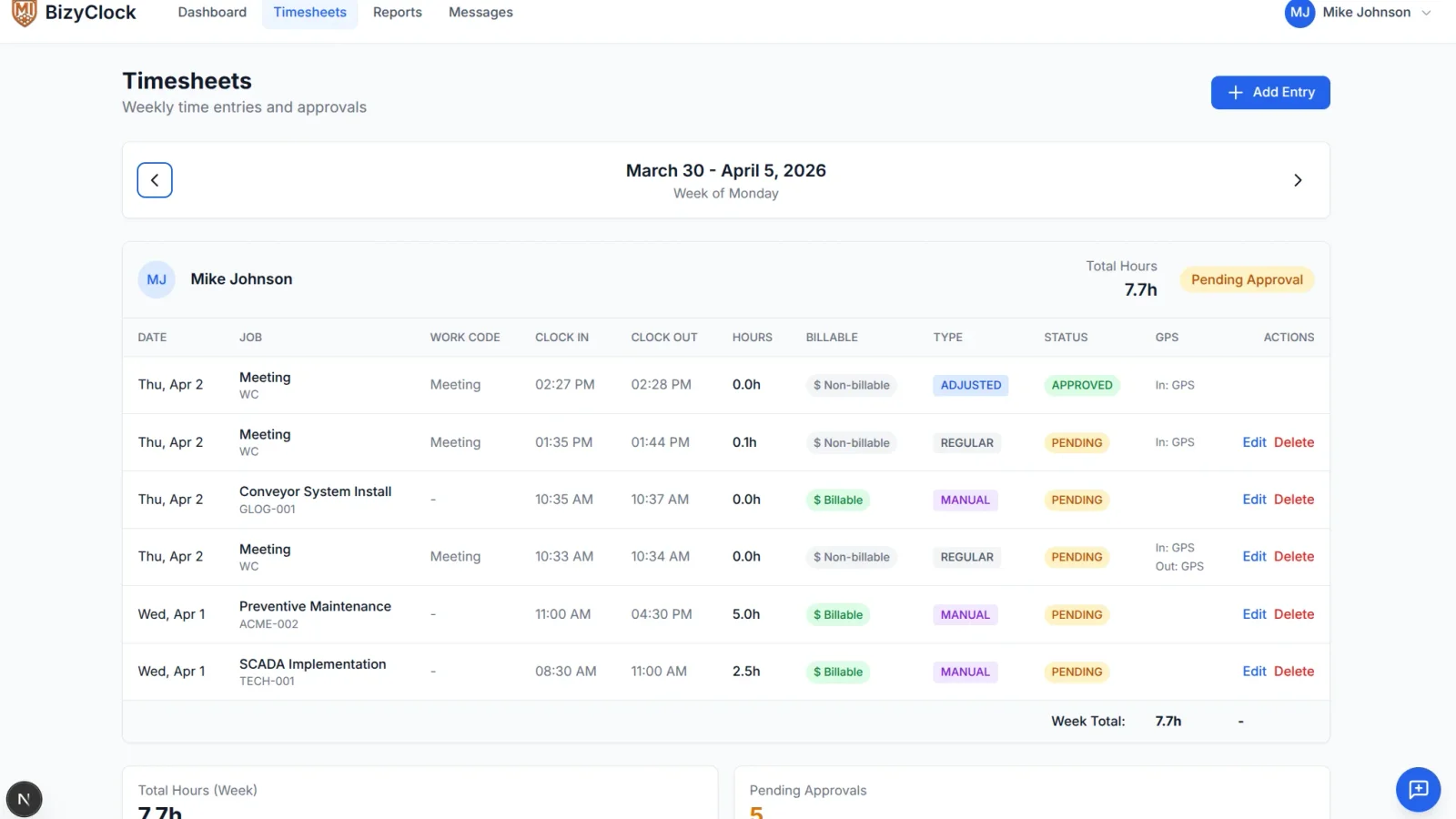
Mistakes happen. An employee forgets to clock out, the wrong job gets picked, or a break doesn't get logged. BizyClock lets you fix these entries quickly — while keeping a full audit trail so nothing slips by unnoticed.
How to edit an entry
Open Timesheets from the main menu.
Find the entry you want to correct in the weekly view.
Click the Edit button next to the entry.
In the Edit Time Entry dialog, adjust the fields you need to change.
Enter a reason for adjustment — this is required.
Click Save.
What you can change
Clock-in and clock-out times — adjust either or both, down to the minute.
Job or work code — reassign the entry to a different job, or categorize it with a work code.
Break minutes — the break time deducted from the entry's total hours.
Billable status — mark the entry as billable or non-billable (only entries assigned to a job can be billable).
Notes — any extra context. Your note gets appended with your name and a timestamp, so previous notes are never overwritten.
Who can edit what
Edit permissions follow your role:
Employees can edit their own entries, but only while the entry is still pending approval.
Once approved, employees can't change it.
Supervisors can edit entries for anyone on their team — even approved ones. If a supervisor changes an approved entry, it automatically returns to Pending status for re-approval.
Admins and owners can edit any entry in the system. Edits to approved entries stay approved, so admins don't trigger re-approval cycles.
Built-in guardrails
few rules keep your data clean:
Every entry needs a job or a work code. You can't leave both blank.
No overlapping entries. If your edit would cause one employee to be clocked into two places at the same time, BizyClock blocks the save and tells you exactly which entry conflicts.
Pay period limits. When admins edit other people's entries, they're restricted to the current pay period — so past payroll runs stay locked in.
Deleted entries can't be edited. Restore them first if you need to make changes.
Every edit is logged
BizyClock keeps a full audit trail of every adjustment. For each edit we record who made the change, when it happened, the reason they gave, and a snapshot of the previous values. Edited entries are flagged as Adjusted so you can tell at a glance which entries were modified after the fact. That means you get the flexibility to fix honest mistakes without sacrificing the accuracy you need for payroll, billing, and compliance.
Quick tips
Use clear, specific reasons in the adjustment field ("Employee forgot to clock out after 5pm shift") rather than vague ones ("fix"). Your future self will thank you during an audit.
If an employee routinely forgets to clock out, consider setting up a <strong>kiosk</strong> or a reminder — editing after the fact should be the exception, not the routine.
Supervisors: if you re-approve an edited entry, double-check the new times match the reason given.